How to Edit Text in Image Online
If you need to update words inside a photo, poster, screenshot, or product image, you no longer need Photoshop. The fastest workflow is using an AI image text editor directly in your browser.
This guide shows you exactly how to edit text in image online in minutes, with a prompt-first workflow that replaces old text while preserving style and layout.
Why Use an Online AI Image Text Editor Instead of Manual Editing?
Traditional editing often means masking letters by hand, repainting backgrounds, and trying to match fonts manually. An AI workflow automates those heavy steps while keeping your result natural.
- Font and style matching: AI adapts font shape, size, color, and texture to blend with the original design.
- Layout-aware replacement: Edit existing text while maintaining spacing, alignment, and visual balance.
- No design software required: Everything runs online, so beginners can get professional-looking results.
- Faster output: Most edits finish in seconds instead of long manual retouching sessions.
How to Edit Text in Image Online: 5 Steps
Step 1: Open the Tool
Go to Image Text Editor. You can start directly in your browser without installing desktop software.
Step 2: Upload Your Image
Upload the photo, screenshot, banner, or product image that contains text you want to change.
Step 3: Describe the Exact Text Edit
Use natural language to describe the change. The tool does not require separate mode selection.
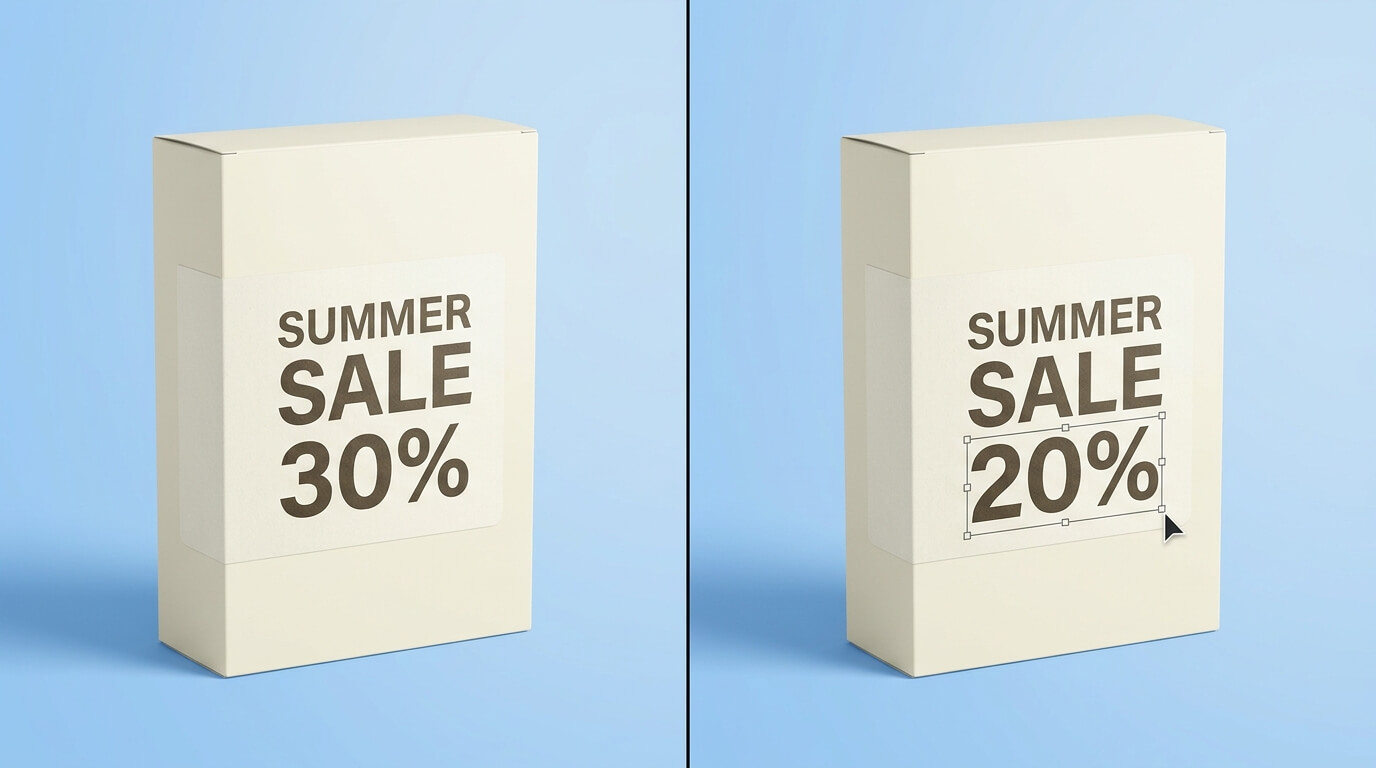
- What to replace: “Change ‘SALE 30%’ to ‘SALE 20%’.”
- Where it is: “The red banner text at the top.”
- How it should look: “Keep the same style and alignment.”
Step 4: Set Output and Generate
Choose quality (1K or 2K) and aspect ratio, then click Generate.
Step 5: Review and Download
Check the result, continue editing if needed, then download the final image.
Real Use Cases You Can Do in Minutes
1) Update Product Labels and Prices
Need to change a sale price, product variant, or promo line? Replace only the text while keeping packaging style intact.
2) Fix Screenshot Typos
For tutorials, support docs, and app demos, quickly correct text mistakes in screenshots without recreating the whole design.
3) Localize Creative Assets
Swap English text to another language for regional campaigns while preserving layout and visual consistency.
4) Refresh Marketing Creatives
Update outdated promo copy in banners and social creatives without rebuilding the full design.
Tips for Better Results
- Use clear source images: Higher resolution helps AI read letters and texture more accurately.
- Be specific in instructions: Mention exact new wording and where the text should appear.
- Keep context in mind: Match tone and spacing so new text feels native to the original image.
- Preview before export: Zoom in to check small details like edges and letter alignment.
FAQ: Edit Text in Image Online
Can I edit text in image online without Photoshop?
Yes. This workflow is browser-based, so you can edit image text directly online without using Photoshop.
Can AI keep the original font style?
In most cases, yes. The editor analyzes nearby text style and tries to match font weight, color, and spacing for natural blending.
Can I remove text without damaging the background?
Yes. Although this guide focuses on editing existing text, the same tool can also handle text removal with background reconstruction.
Does this work for screenshots and JPEG images?
Yes. It works well for screenshots, JPEGs, PNG posters, and many common image types used in daily content workflows.
Conclusion
If you're searching for the easiest way to edit text in image online, a prompt-first AI workflow is now the most practical option. You can update wording in seconds without learning complex software.
Ready to try it? Open the Image Text Editor now.