3 LinkedIn Headshot Prompts for Your Own Photo (2026)
Your current photo already looks like you, but the busy room behind you does not belong on your professional profile. Start with that photo and ask for a specific background and light treatment, while keeping the features people recognize.
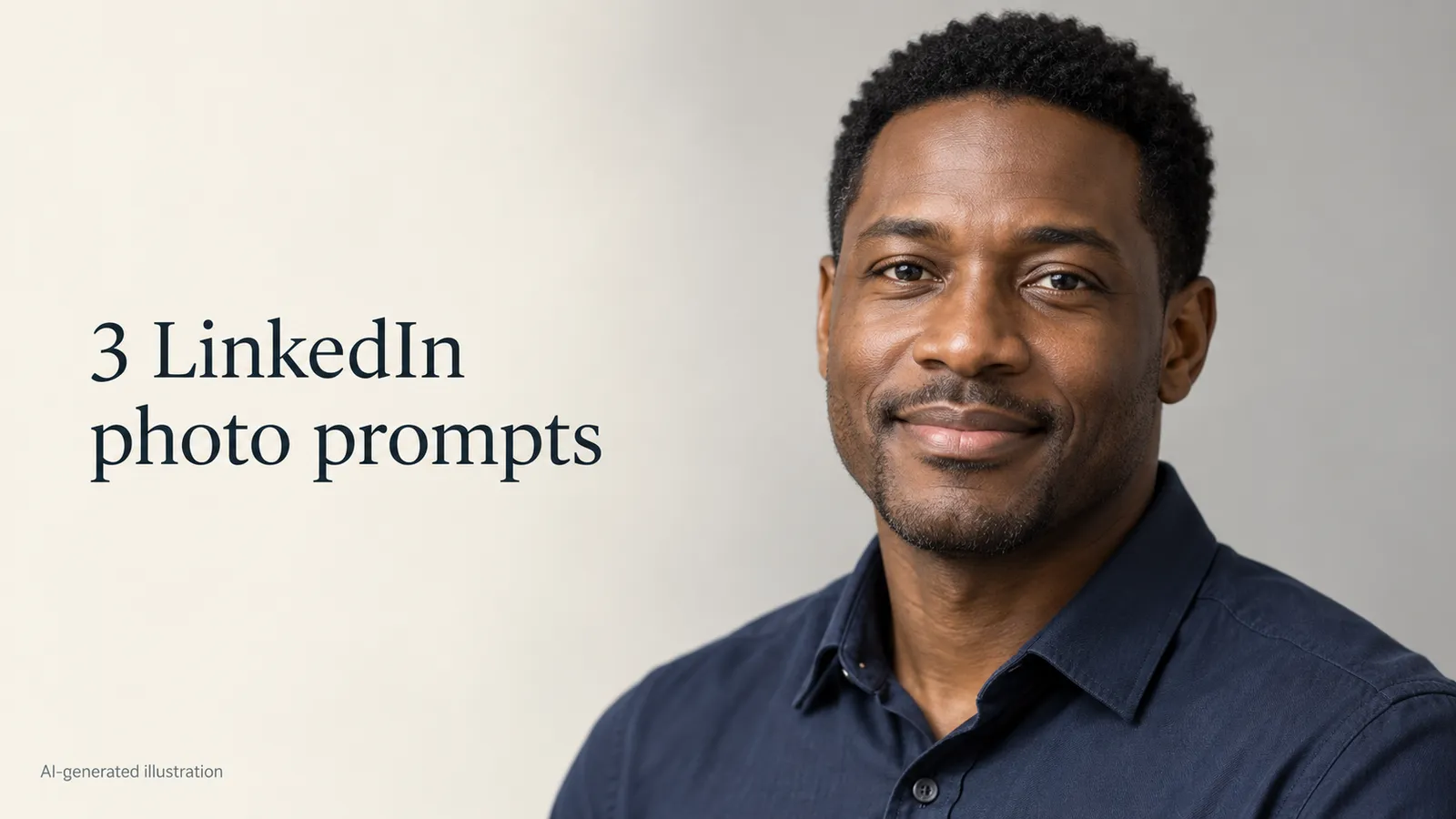
These three LinkedIn headshot prompts request modest edits to your own photo. They keep your clothes and expression, so you can compare backgrounds without asking the model to redesign you. The images below are AI-generated style illustrations, not Editaimg results. These exact prompts have not been tested in Editaimg; likeness and quality can vary.
Use a photo you already have
Copy one prompt below, open the editor, upload your photo and paste it into Describe the Change. Check the displayed cost or free allowance before generating.
Open AI Image Changer →Choose a source photo before choosing a style
Use a recent photo of yourself with open, visible eyes, sharp facial detail and both shoulders in the frame. An evenly lit phone portrait is a better starting point than a dark party photo or a heavily filtered selfie. If your face is tiny, blurred or hidden behind sunglasses, take another photo rather than asking the model to guess it.
Wear something you would actually wear to work. These prompts preserve that outfit. A clothing change introduces another thing to inspect; it is unnecessary if the shirt already suits your profile.
Three copyable LinkedIn headshot prompts
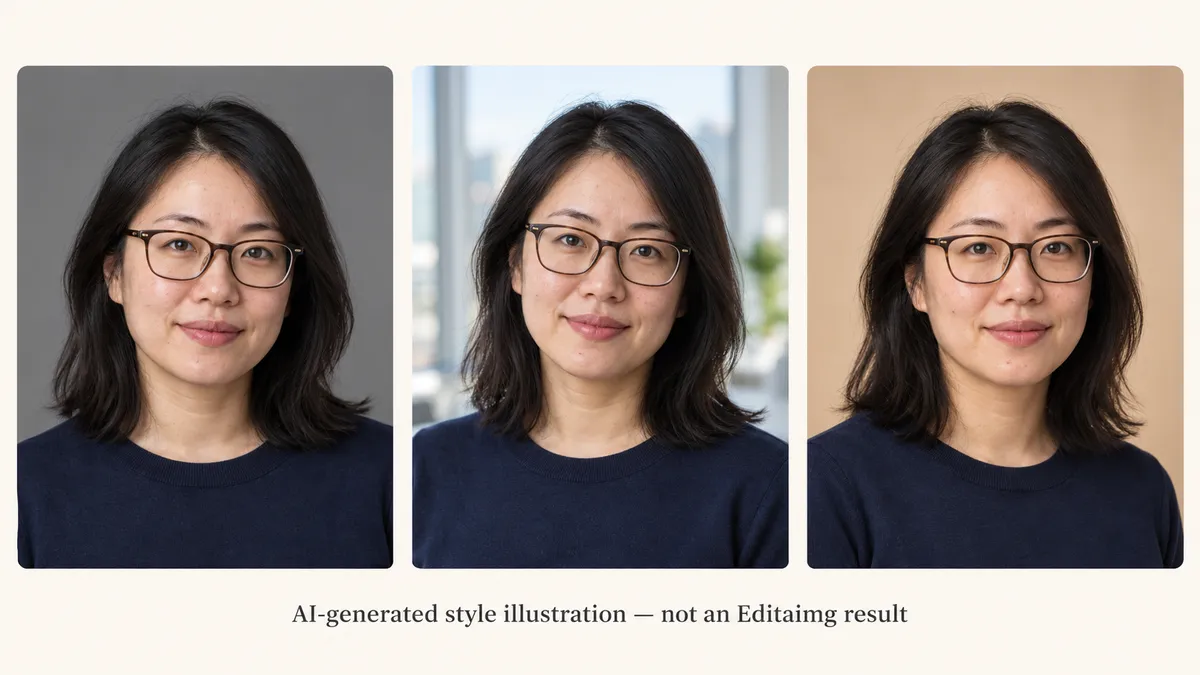
1. Neutral gray studio
Use this with: An evenly lit head-and-shoulders photo with a visible neckline. A simple shirt or sweater already works; you do not need to invent a suit.
Edit the uploaded photo into a clean professional headshot for my LinkedIn profile. Use this photo as the identity reference. Preserve my facial proportions, eye shape, nose, jawline, skin tone, age, hairstyle, glasses, facial hair and natural expression. Keep my existing clothing. Replace the background with a plain light gray studio backdrop. Use soft, even light with gentle shadows; keep realistic skin texture and natural eye reflections. Frame my head and shoulders in a square composition, with space above my hair and both shoulders visible. Do not slim my face, smooth away identifying features, change my smile, add text or add a logo.What you can change: Change light gray to medium gray. Keep the existing clothes and expression.
2. Bright office daylight
Use this with: A portrait taken near a window, with both eyes visible and no harsh shadow across the face. Keep the light coming from the same side as in the source.
Edit the uploaded portrait for a professional LinkedIn profile photo. Keep me recognizable: preserve my face shape, eye shape, nose, mouth, age, skin tone, hairstyle, glasses and facial hair. Keep my clothes, pose and expression. Replace the background with a softly blurred, uncluttered modern office with large windows, with no readable signs or logos. Use natural daylight from the left, retaining realistic skin texture and gentle shadows. Keep the eyes clear without inventing new facial details. Make a square head-and-shoulders composition with comfortable headroom. Do not change my facial geometry, add people, create a beauty-filter effect or invent badges.What you can change: Change modern office to a simple home office. If needed, change daylight from the left to daylight from the right to match your photo.
3. Warm beige studio
Use this with: A clear portrait with neutral or slightly warm light. Best when you want a less formal background while keeping the photo suitable for a professional profile.
Edit the uploaded photo into a relaxed professional headshot for my LinkedIn profile. Preserve my recognizable facial features, proportions, age, skin tone, hairstyle, glasses, facial hair and original expression. Keep my existing outfit and posture. Replace the background with a simple warm beige studio backdrop. Apply soft, neutral light to my face with gentle shadow depth; keep the background slightly warm without adding an orange cast to my skin. Retain pores and natural facial lines. Use square head-and-shoulders framing with the full hair outline and room around the shoulders. No face reshaping, exaggerated whitening, added jewelry, text, logos or artificial skin smoothing.What you can change: Change warm beige to soft taupe. Keep warmth in the background rather than turning your skin orange.
Apply one prompt to your own photo
- Copy the complete prompt for your preferred style.
- Open AI Image Changer, upload one source photo and paste the prompt into Describe the Change. The link opens the existing editor; it does not fill in the prompt automatically.
- Select 1:1 in the aspect-ratio control as well as asking for a square in the prompt. Review the available resolution and displayed generation allowance or credit cost, then generate if you want to proceed.
- Compare the output with your original at full size. Check your face first, then the background and crop. Download only a result you are happy to use.
Reject a polished photo if it stops looking like you
Check your eye shape, nose, jaw, smile, skin tone, glasses and distinctive facial marks. Look for duplicated glasses arms, hair halos, oddly bright teeth or a softened face that no longer matches the original. A prompt asks for preservation; it does not guarantee it.
If the face drifts, restart from the original photo and reduce the request to a background-only edit: “Replace only the background with plain light gray. Keep the person, face, hair, clothing, expression and lighting unchanged.” If the source is unclear, a new photo is more useful than repeated attempts to recover detail that was never visible.
For a face lit from the right, change the office prompt's light direction to the right. If warmth changes your skin tone, remove the warm-light request and keep only the beige backdrop. Change one detail at a time, and review the cost before another generation.
Questions about LinkedIn headshot prompts
Can I use a selfie for a LinkedIn headshot prompt?
Yes, if it is sharp, recent and evenly lit, with your eyes and shoulders visible. A photo taken from farther away often gives a more useful starting composition than a very close selfie with strong perspective distortion.
Will these prompts keep my face exactly the same?
No prompt can promise that. They explicitly request preservation, but generative editing may redraw facial detail. Compare each result with the original and reject any version that changes your recognizable features.
Can I change the outfit to a blazer?
You can replace “Keep my existing clothing” with a specific outfit instruction, such as “Use a plain navy blazer over a white shirt.” That adds an untested change. Inspect the collar, shoulders and fit as well as your face.
Are the prompts free to copy?
Yes. Using an image editor is separate: available free allowances, sign-in requirements and credit costs depend on the tool and your account. Read the current editor's cost before generating.
Why do I need a square crop?
A square gives you a practical starting point for a profile picture. Leave enough space around the face for a circular display, and review the crop in LinkedIn before saving it. Avoid cutting off your hair or chin.
Try one style with your own photo
Copy one prompt below, open the editor, upload your photo and paste it into Describe the Change. Check the displayed cost or free allowance before generating.
Open AI Image Changer →