Editaimg Logo
Editaimg
Blog
Editaimg
Editaimg

AI image editor for upscaling, jewellery retouch, watermark removal, translation, and more — professional results in one click.

[email protected]

Tools

  • Open Eyes in Photo
  • AI Image Changer
  • Image Upscaler
  • Jewellery Retouch
  • AI Kiss Generator
  • Add Someone to Photo
  • AI Snow
  • Image Text Editor
  • AI Image Translator
  • Gemini Watermark Remover

Explore

  • Home
  • Pricing
  • Blog
Copyright © 2025 Editaimg. All rights reserved.·Privacy Policy·Terms of Service·Refund Policy
AI Photo Blink Fix — No Photoshop Needed

Open Eyes in Photo — Fix a Blink Without Losing the Moment

Open eyes in photo with a focused AI edit that keeps the person's recognizable face, smile, pose, lighting, and background. Upload one portrait or group shot and repair closed or half-closed eyes automatically without masks, layers, or a retake.

Open Eyes in Photo

Upload one photo with closed or half-closed eyes. The focused repair instruction runs automatically, so there is nothing to write.

Drop one photo here or click to upload

Max 50MB

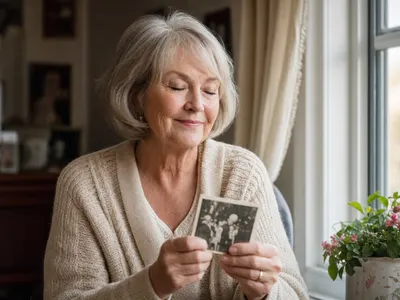
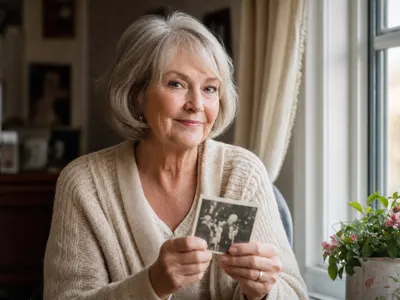
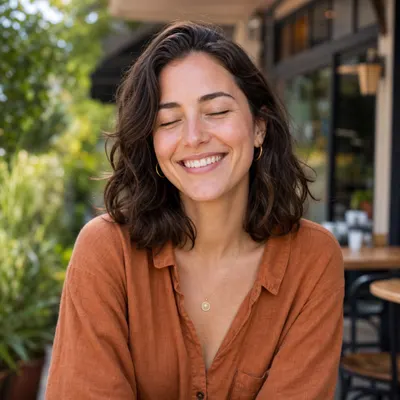
AI-edited portrait with naturally opened eyes
Original portrait with closed eyes
Closed Eyes
Eyes Open

Drag the divider to preview the focused eye correction. Upload one photo to create your own result.

How to Open Eyes in Photo in Three Steps

The workflow is deliberately simple. Open eyes in photo by uploading one original; the focused repair instruction is already built in. The model handles the eye area automatically while the comparison view keeps review clear.

01

Upload the Blinking Photo

Choose one clear JPEG, PNG, or WebP in which one or more people blinked. To open eyes in photo reliably, use the highest-quality original available and make sure the affected face is not hidden behind hair, strong glasses glare, or another person.
02

Let the Focused AI Repair Run

The hidden instruction tells Open Eyes in Photo to change only closed eyelids and the immediately necessary eye area. There is no prompt field to manage, so the interface stays focused on the photo and output quality.

03

Review and Download

Drag the divider to compare the result with the original. When the gaze, eyelids, and catchlights feel natural, download the corrected file. If the first attempt misses, open eyes in photo again or start with a clearer source.

A Focused Way to Open Eyes in Photo

A blink is a tiny flaw in an otherwise valuable picture. This experience is designed to open eyes in photo without turning a simple repair into a full portrait makeover or asking you to learn professional retouching software.

Preserve the Person, Not Just the Pixels

The prompt tells AI to change the eyelids and necessary eye area while retaining face shape, expression, skin texture, hair, and pose. That narrow scope matters when you open eyes in photo because a technically open gaze is not useful if the subject no longer looks like themselves.

Target One Blink in a Group

The focused instruction asks AI to repair closed eyes while leaving every other face unchanged. This makes it practical to open eyes in photo from a wedding, reunion, team picture, or holiday where one split-second blink spoiled an otherwise synchronized group shot.

One Photo Keeps the Workflow Simple

Open Eyes in Photo accepts one source image, which removes reference ordering and prompt decisions from the form. The model uses visible facial structure, lighting, head angle, and neighboring pixels to create a plausible natural gaze.

Keep the Original Scene Intact

A good blink repair should not announce itself. The instruction emphasizes consistent light, shadows, image grain, camera angle, and depth of field so the new eye area belongs in the same photograph. You can open eyes in photo and export at 1K, 2K, or 4K for different uses.

AI-Generated Marketing Examples

Open Eyes in Photo Before and After

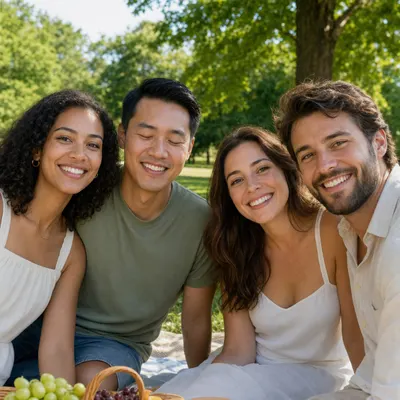
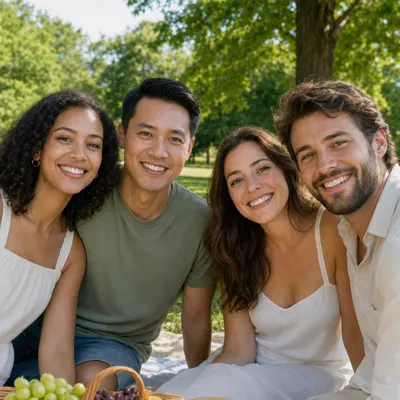
These paired examples show the intended edit: hover or press a card to reveal the original blink. In every pair, the goal is to open eyes in photo while keeping the same fictional subject, smile, clothing, framing, light, and environment.

Group photo with one person blinking before AI correctionSame group photo with the blinking person's eyes open
After
Before

One Person Fixed in a Group

Open eyes in photo only for the blinking man. The other friends, expressions, positions, picnic scene, crop, and daylight stay matched to the original.

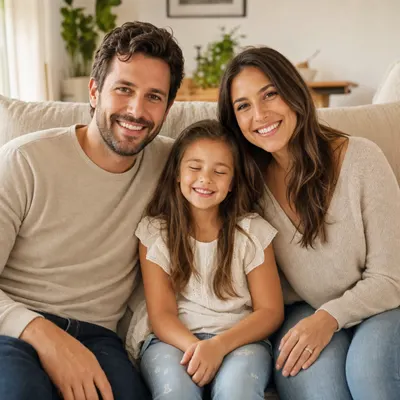
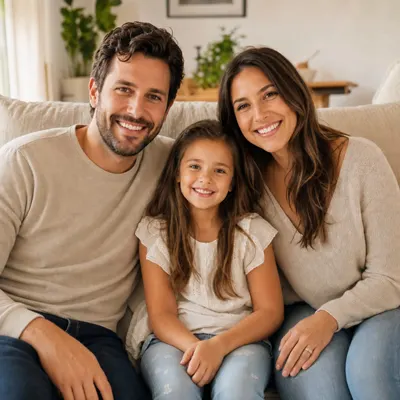
Family photo with a child blinking before AI correctionSame family photo with the child's eyes naturally open
After
Before

Child's Blink Fixed Naturally

Open eyes in photo gently for the child while both parents, every smile, the family pose, clothing, sofa, and window light remain unchanged.

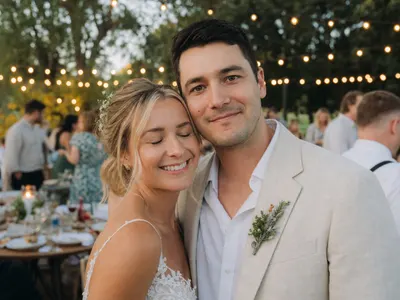
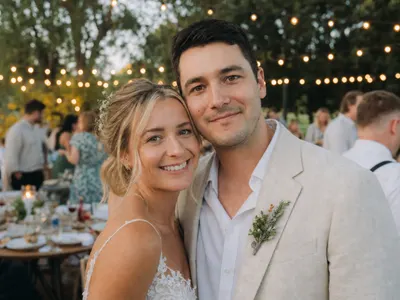
Wedding portrait with the bride blinking before AI correctionSame wedding portrait with the bride's eyes naturally open
After
Before

Wedding Blink Repaired

Open eyes in photo only for the blinking bride while the groom, smiles, clothing, guests, string lights, crop, and warm reception color remain consistent.

Older woman holding a keepsake with closed eyes before AI correctionSame older woman with naturally opened eyes after AI correction
After
Before

A Gentle Fix for a Keepsake

Open eyes in photo for an older portrait while age, natural skin texture, silver hair, hands, printed keepsake, window light, and home setting stay intact.

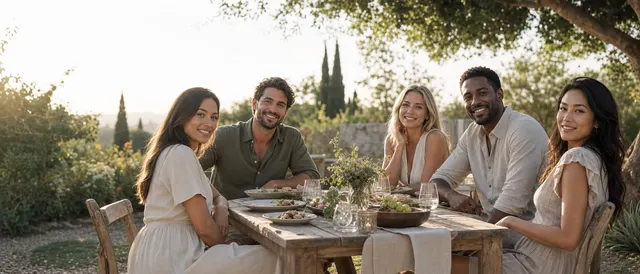
Five friends sharing a relaxed garden dinner at golden hour

One blink should not erase the best frame. Open eyes in photo, preserve the shared expression, and keep the picture everyone already loves.

When People Open Eyes in Photo with AI

The same narrow repair supports personal memories and professional portraits. Use it whenever the timing is perfect but an eyelid closed a fraction of a second too early.

Selfies and Profile Photos

Open eyes in photo for a profile, résumé, or social post when the expression and lighting already work. A close, sharp face gives the clearest basis for believable eyelids.

Weddings and Group Shots

When everyone finally smiles together, posing again may be impossible. Open eyes in photo for the blinking guest while asking AI to preserve every other person.

Children and Family Moments

Children rarely pose on command. Open eyes in photo from a birthday or family session without replacing the child's spontaneous smile or affectionate body language.

Irreplaceable Old Photos

For an irreplaceable reunion or graduation, open eyes in photo at the best scan resolution, review closely, and keep the untouched original archived.

Better Inputs, Better Results

Get a More Natural Eye-Opening Result

AI creates plausible detail rather than recovering information hidden behind closed eyelids. These practical choices give the model more context and help you open eyes in photo with fewer retries and less risk of changing the surrounding face.

  1. 1

    Start with a visible, sharp face

    Open eyes in photo from the original camera file when possible. A large face gives the edit clearer eyelid, brow, texture, and head-angle information.

  2. 2

    Avoid heavy glare and obstruction

    Open eyes in photo more reliably without strong glasses glare, deep shadows, hair across the eyes, or extreme profiles that hide facial context.

  3. 3

    Use the cleanest original available

    To open eyes in photo faithfully, upload the original camera file rather than a compressed screenshot so the model can use real texture and facial detail.

  4. 4

    Keep the intended face visible

    Open eyes in photo most predictably when the blinking face is large enough to inspect. The built-in instruction already limits changes to the eye area and preserves identity, expression, pose, background, light, and crop.

  5. 5

    Inspect both eyes at full size

    After you open eyes in photo, check gaze, pupils, catchlights, eyelid shape, and texture. Retry the generation or use a clearer original if anything feels uncanny.

What to Expect When You Open Eyes in Photo

The tool is useful, but an honest workflow includes review. Generated eye detail can vary between attempts, especially when the original provides little information or more than one face needs correction.

Best on clear, front-facing people

Results are most predictable when the face is well lit, in focus, reasonably large, and close to a front or three-quarter view. Tiny faces, heavy blur, opaque sunglasses, and fully hidden eye areas may not provide enough context to open eyes in photo convincingly.

A second pass may be worthwhile

Generative editing is not deterministic. If iris color, symmetry, gaze, or identity feels off, retry the generation, choose a higher resolution, or start from a clearer original. Keep the source and review important professional or sentimental pictures before publishing or printing.

Open Eyes in Photo FAQ

Clear answers about the one-photo workflow, group pictures, realism, files, and privacy before you run your first blink repair.

What does Open Eyes in Photo do?

+

Open Eyes in Photo generates a plausible open gaze for closed or partly closed eyelids while its built-in instruction protects identity, expression, pose, light, and background. Use Editaimg's main editor for broader changes. Explore the full AI Image Editor.

How does Open Eyes in Photo work?

+

Open Eyes in Photo analyzes the visible face, head angle, light, and nearby pixels, then generates a fitting eye area. It creates plausible detail rather than revealing hidden original pixels, so review matters.

Can I use Open Eyes in Photo for free?

+

Open Eyes in Photo works with the credits available to your Editaimg account. The current cost appears before generation, and no desktop software is required.

Can Open Eyes in Photo fix one person in a group?

+

Yes. Open Eyes in Photo can detect closed or half-closed eyes while the built-in instruction asks it to preserve other faces. Review every person in the comparison before downloading.

Does Open Eyes in Photo need a second photo?

+

No. Open Eyes in Photo is intentionally designed for one source image. Upload the clearest original available; no reference ordering or prompt writing is required.

Will Open Eyes in Photo always look natural?

+

Open Eyes in Photo can vary between attempts. Clear front-facing faces work best; blur, shadow, glare, occlusion, and extreme angles can reduce consistency. Review full size and retry if needed.

Which files does Open Eyes in Photo support?

+

Open Eyes in Photo accepts common formats including JPEG, PNG, and WebP up to 50 MB in the interface, offers 1K, 2K, or 4K, and downloads JPG or PNG.

Is Open Eyes in Photo suitable for sensitive images?

+

Open Eyes in Photo is an online processing service. Read the Privacy Policy, avoid highly sensitive material, and upload only photographs you own or have permission to process.

Save the Best Frame

Open Eyes in Photo Without a Retake

Upload the picture you already love and let the focused Nano Banana 2 workflow repair the eye area automatically while protecting the rest of the moment.

One photo is enough to start
No prompt writing or masks
Automatic closed-eye targeting
Choose 1K, 2K, or 4K output
Download as JPG or PNG
No masks or layers to learn