How to Add a Deceased Loved One to a Photo With AI
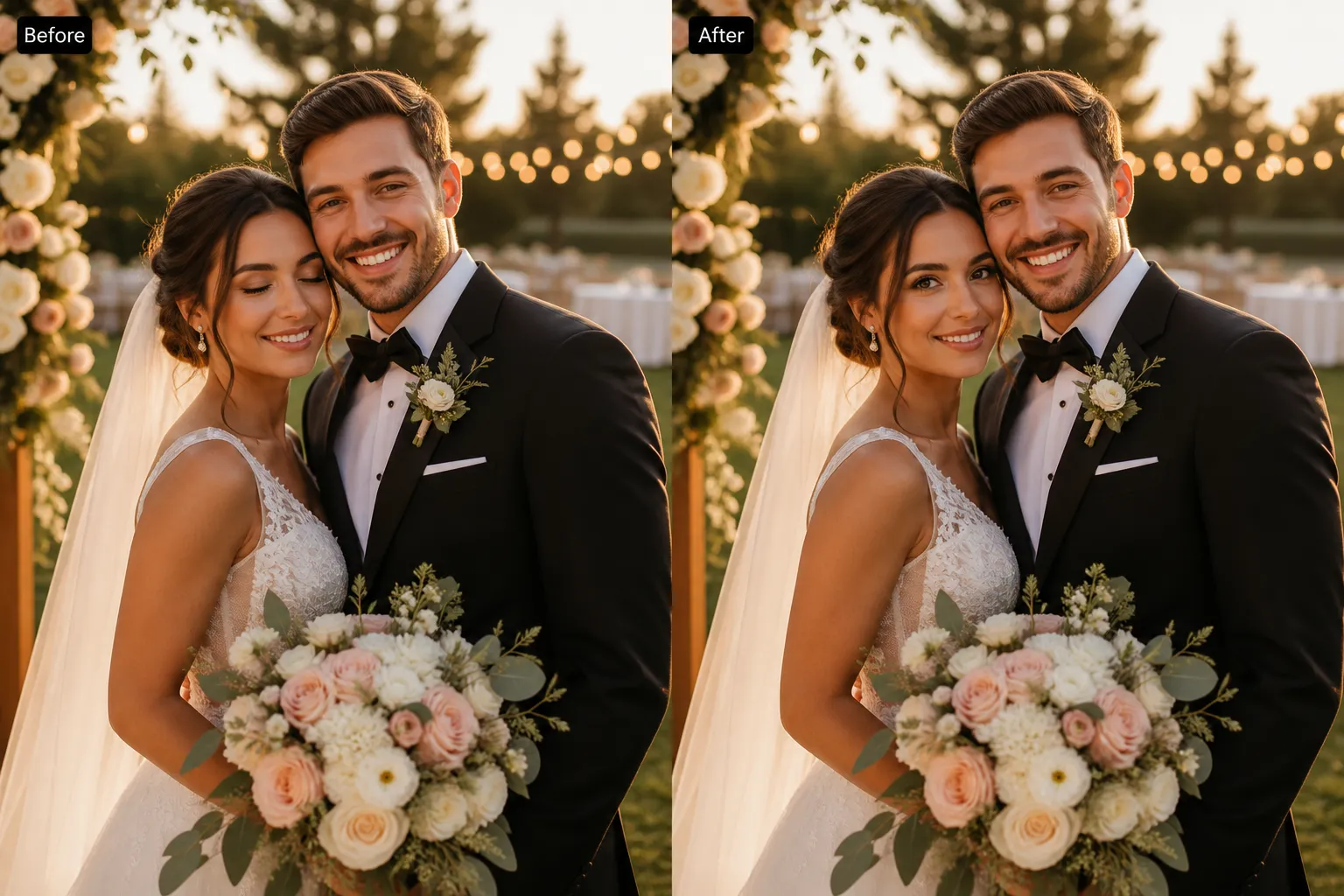
Some photos feel unfinished. A wedding portrait where the bride's father isn't standing beside her. A Christmas card missing the grandmother who used to sit in the same chair every year. A newborn's first family photo that can't include the great-grandfather who never got to meet them.
AI can now fill that gap — adding a deceased loved one to a photo by blending a separate portrait of them into a current family scene, matching the lighting, scale, and perspective so the result looks like one real moment instead of two photos glued together. This guide covers how it actually works, what makes the result look natural instead of pasted-in, and how to get a good outcome even from an old, faded, or black-and-white photo.
Why This Is Trickier Than a Normal Photo Edit
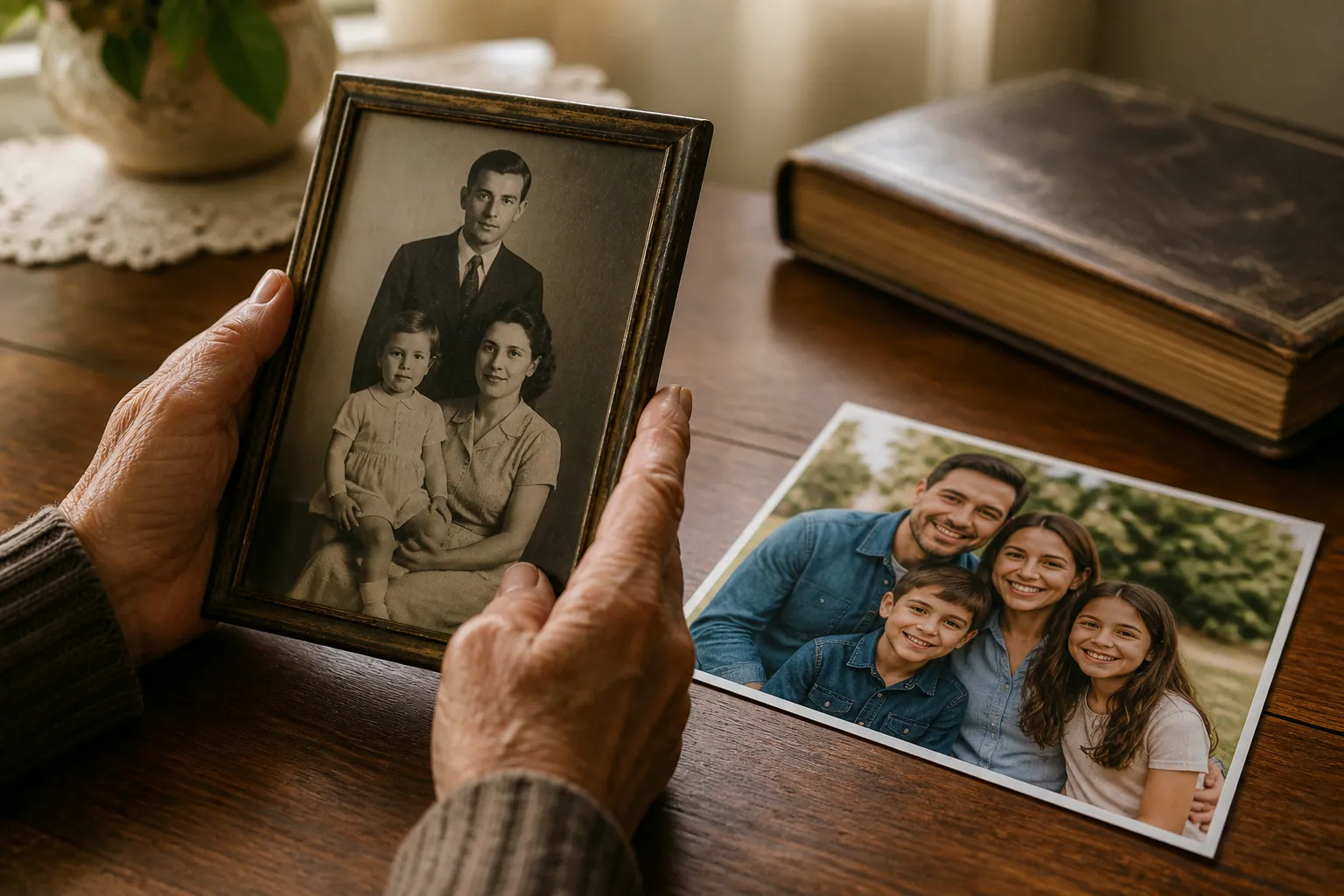
Cutting a person out of one photo and dropping them into another sounds simple, but the two source photos are almost never compatible on their own. The family photo might be a bright, modern smartphone shot; the photo of your loved one might be a decades-old print taken indoors under warm, uneven light — sometimes faded or scratched, sometimes black-and-white entirely. For the composite to read as a real photo, the AI has to reconcile all of that at once: match the color temperature and skin tones between two completely different eras of photography, get the body proportions right when a headshot is merged into a full-body group scene, and place the person somewhere that looks like they were actually standing there — not floating in an empty patch of grass.
This is also why the result is best treated as a respectful reconstruction, not a literal photograph. A good tool preserves the person's real facial features and likeness from your reference photo rather than generating a generic face, but it's still an AI interpretation of light and space. Comparing the result to photos you remember of them, before printing or sharing, is worth the extra minute.
Why Families Do This
The reasons are rarely about "editing" a photo — they're about completing one:
- Wedding portraits. Adding a father, mother, or grandparent who passed away before the ceremony, so they're standing in the family photo the way they would have been there in person.
- Multi-generation portraits. Bringing grandparents into a photo with grandchildren they never got to meet — a common request around the holidays, when families put together a card or a printed portrait.
- Completing a reunion photo. Not every gap is a loss. Someone who was deployed, sick, or living overseas can be added into the group shot the same way.
- Milestone photos. Graduations, birthdays, and new babies — moments where families want the person who should have been there included, even if they weren't able to be.
How to Add a Deceased Loved One to a Photo, Step by Step
You don't need Photoshop layers or manual masking for this. Using Editaimg's Add Someone to Photo tool, the process is two uploads and a click:
- Upload the base photo. This is the current family scene — the wedding portrait, the holiday photo, the group shot — where your loved one should appear.
- Upload a photo of your loved one. A clear, front-facing photo works best. It doesn't need to be a high-resolution scan or a recent photo — an old print, a phone snapshot of a framed portrait, or a cropped group photo all work as reference images.
- Add placement instructions (optional). The text box under the uploads lets you describe where they should go and other visual details — for example, "place her seated on the left side of the sofa, next to grandma" or "he should be standing behind the bride, wearing a dark suit." Describing position and context works better than describing mood or expression, since the AI already preserves their real face and expression from your reference photo.
- Choose your output settings and generate. Pick a resolution (1K, 2K, or 4K if you plan to print the result) and generate. The AI removes the background from your reference photo automatically, matches the lighting and color of the base photo, and blends the person into the scene in about a minute.
Bring them back into the frame
Upload your family photo and a photo of your loved one — Editaimg blends them into one natural, high-resolution portrait in under a minute. Free to try, no design skills needed.
Add a Loved One to Your Photo →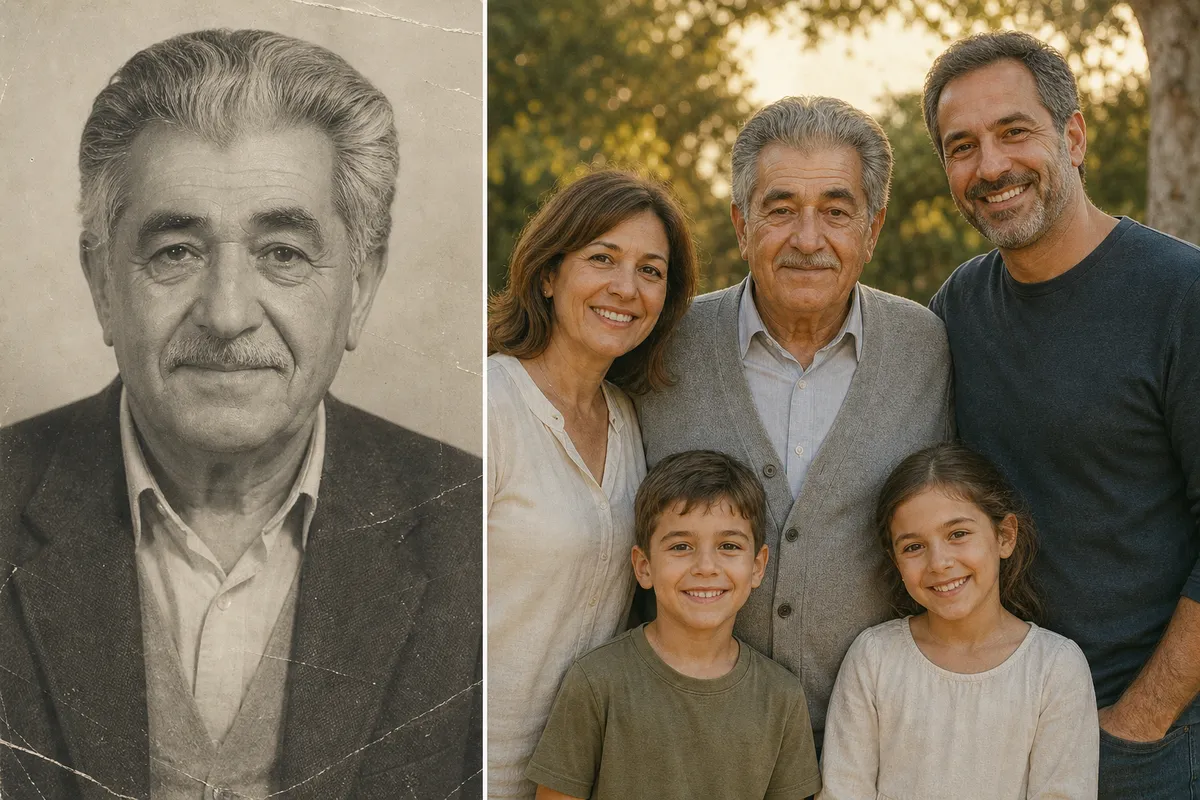
Getting the Best Result From an Old or Damaged Photo
Most reference photos of a deceased loved one aren't recent, and that's fine — but a few things make a real difference in how natural the final result looks:
- Pick the clearest photo you have. Front-facing, well-lit, and unobstructed beats a technically newer photo where their face is at an angle or partly in shadow. A phone snapshot of a good physical print will usually outperform a low-quality digital scan of a great one.
- Ask for colorization if the photo is black-and-white. In the instructions box, something like "colorize this photo and match the warm lighting of the family photo" tells the AI to predict natural, era-appropriate color instead of leaving one person looking like they stepped out of an old film reel.
- Mention visible damage. If the print is scratched, creased, or faded, note it — "restore the scratches and fading on this photo before blending" — so the AI cleans it up as part of the merge rather than carrying the damage into the final composite.
- Upscale a very low-resolution photo first. If your only photo is a small, blurry scan, running it through Editaimg's AI Image Upscaler before using it as a reference can noticeably improve how much facial detail the final blend preserves.
- Don't settle for the first result. Outputs vary each time you generate. If the face doesn't feel quite right, try again, adjust the placement instructions, or use a different reference photo of the same person — most people land on a version they're happy with within two or three attempts.
Is It Okay to Do This?
This isn't a new idea — families have retouched photographs by hand for generations to bring missing relatives into a portrait, long before AI existed. Using it to complete a wedding photo, a holiday card, or a family portrait is generally seen as a private, personal choice, and it's worth treating the reference photo of your loved one the way you would any cherished keepsake: with care, and ideally with the comfort of other family members in mind before you share the result widely. The goal of a good result is realism without exaggeration — a person who looks like they were simply standing there, not a dramatic or staged effect.
Frequently Asked Questions
How do I add a deceased loved one to a photo for free?
Upload your family photo and a photo of your loved one to Editaimg's Add Someone to Photo tool. It's free to generate a preview, with no design software or editing experience required.
Can I add a loved one to a photo if their only picture is black-and-white?
Yes. Describe it in the instructions box — for example, "colorize this photo to match the lighting of the family photo" — and the AI will predict natural coloring while keeping their facial features and likeness intact.
Will the added person look pasted in or fake?
A well-blended result matches lighting, color temperature, scale, and shadows between the two source photos, so the person reads as part of the same scene. Quality varies by photo pair, which is why it's worth trying two or three source photos or generations before settling on a final version.
Can I add more than one deceased relative to the same photo?
Yes — add them one at a time. Generate the first merge, download it, then use that result as your new base photo to add the second person, and repeat for additional family members.
Is it disrespectful to add a deceased loved one to a photo?
Most families see it as a modern version of a long tradition of retouching photographs to complete a family portrait — a personal way to create a keepsake, not something with a universal right or wrong answer. It comes down to what feels appropriate for your own family.
A photo missing someone doesn't have to stay that way. If you have a family portrait, a wedding photo, or a holiday card that feels incomplete, try adding them back in — it takes two photos and about a minute.
Complete the family photo
Editaimg blends a separate photo of your loved one into any family scene, matching lighting and perspective automatically. Free to try.
Try It Free →