
How to Remove Gemini Watermark: Visible & SynthID
You’ve just generated the perfect image using Google’s Gemini (formerly Bard). The lighting is perfect, the composition is spot-on, but there’s one problem: that small, semi-transparent "AI" sparkle logo in the bottom-right corner.
For designers, content creators, and professionals, this watermark can be a deal-breaker. It distracts from the visual narrative and screams "AI-generated" before anyone even looks at the content.
If you are searching for how to remove Gemini watermark without blurring your image or losing quality, you’ve come to the right place. In this guide, we’ll explain why traditional tools fail and show you a mathematically precise method to restore your images perfectly.
Understanding the Gemini Watermark: More Than Just a Sticker
Before we remove it, it’s important to understand what we are dealing with. Google applies two layers of watermarking to Gemini-generated images:
The Visible Watermark: This is the small white four-point star (sparkle) or "AI" logo you see in the corner. It uses a technique called Alpha Blending, meaning it’s semi-transparent and blends with the pixels behind it.
The Invisible Watermark (SynthID): Developed by Google DeepMind, SynthID embeds a digital signature directly into the pixel values of the image. It’s imperceptible to the human eye but detectable by software.
Most users primarily want to know how to remove the Gemini watermark that is visible (the logo), so their images look clean for presentations or social media.
Why Traditional "AI Removers" Fail
You might have tried using generic "AI Object Removers" or "Magic Erasers" to get rid of the Gemini logo. If you did, you probably noticed the results were... underwhelming.
Here is why traditional methods struggle:
The "Inpainting" Problem: Most AI removers treat the watermark like an unwanted object (e.g., a trash can in a landscape). They erase the area and try to "guess" (inpaint) what should be there. This often results in a blurry, smudge-like patch or distorted textures in the corner.
The "Crop" Problem: Cropping the watermark out is the easiest fix, but you lose a significant portion of your image, often ruining the composition or aspect ratio.
There is a better way. You don't need to "guess" what's behind the watermark—because the information is still there.
The Superior Solution: Reverse Alpha Blending
The secret to a perfect removal lies in math, not AI guessing.
Since the Gemini watermark is applied using a consistent Alpha Blending formula (transparency), we can use a technique called Reverse Alpha Blending.
How It Works
Instead of painting over the watermark, this method calculates the exact pixel values of the original image before the watermark was applied.
The formula looks something like this:
Original_Pixel = (Watermarked_Pixel - Alpha * Logo_Color) / (1 - Alpha)
Why It’s Better
100% Lossless: It restores the exact original pixels. No blurring, no hallucinated details.
Texture Preservation: Complex backgrounds like grass, hair, or text behind the watermark are recovered perfectly.
Privacy-First: This mathematical operation can be performed entirely in your browser. Your images don't need to be uploaded to a remote server to be processed.
Step-by-Step: How to Remove Gemini Watermark (Free & Lossless)
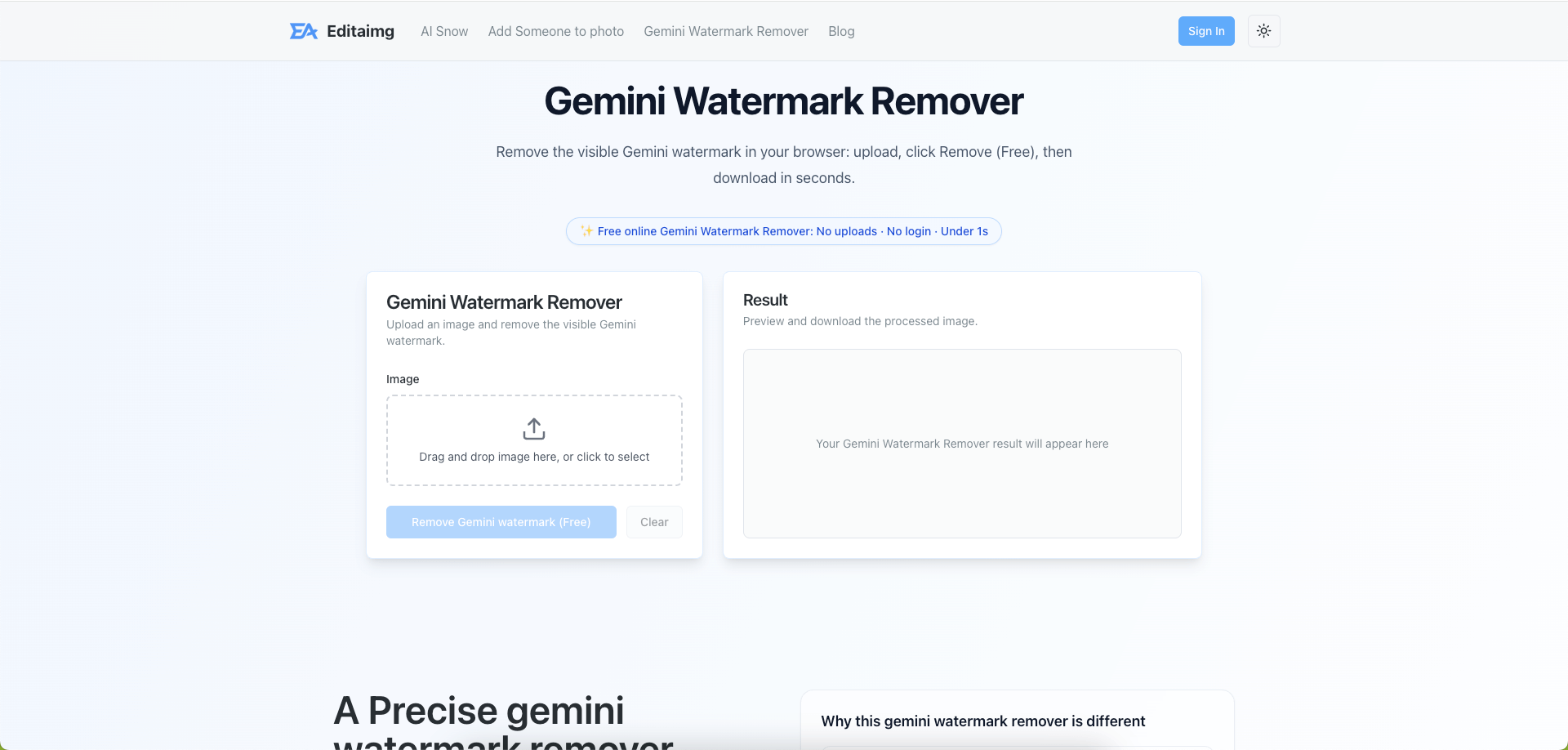
Ready to clean up your images? We have built a free tool specifically optimized for Gemini's watermarking algorithm.
Try the Gemini Watermark Remover Tool Here
Upload Your Image: Simply drag and drop your Gemini-generated image (JPG, PNG, or WebP) into the tool.
Auto-Detection: The tool automatically analyzes the image resolution. Gemini typically uses a 48px watermark for standard images and a 96px watermark for high-res images. Our tool detects this instantly.
One-Click Removal: Click the button to apply the Reverse Alpha Blending algorithm.
Download: Save your pristine, watermark-free image in full resolution.
What About SynthID? (The Invisible Watermark)
A common question is: "Does this remove SynthID?"
SynthID is designed to be robust. It survives compression, cropping, and even color filters. While Reverse Alpha Blending perfectly removes the visible logo, the invisible SynthID signature remains embedded in the pixel data.
For Visual Use: If your goal is to have a clean image for a slide deck, website, or Instagram post, removing the visible logo is all you need. The image will look identical to a non-watermarked photo to the human eye.
For Privacy: Some advanced "pixel perturbation" techniques claim to disrupt SynthID, but they often degrade image quality (adding noise). For 99% of users, removing the visible logo is the priority.
FAQ: Common Questions About Gemini Watermarks
1. Is it legal to remove the Gemini watermark?
For personal use, educational purposes, or internal business presentations, removing the watermark is generally acceptable. However, you should always respect Google's Terms of Service and not misrepresent AI-generated content as a real photograph, especially in news or journalism.
2. Why is my result still blurry with other tools?
As mentioned, other tools use "Inpainting" to hallucinate pixels. Our tool uses Reverse Alpha Blending to mathematically recover the original pixels. If you want crisp details, you must use a tool designed specifically for this transparency restoration.
3. Does this work on all Gemini images?
Yes! Whether you generated the image using Gemini Advanced, Gemini Nano, or the standard version, the watermarking algorithm is consistent.
4. Is my data safe?
Absolutely. Our Gemini Watermark Remover processes images locally in your browser. We do not store or use your images for training.
Conclusion
Knowing how to remove Gemini watermark effectively can save you hours of manual editing in Photoshop. By choosing a solution based on Reverse Alpha Blending rather than generic AI inpainting, you ensure your images remain sharp, professional, and true to your original vision.
Ready to try it? Remove Gemini Watermark Now