How to Use AI Snow Trend Prompts to Transform Your Photos
The AI snow trend is officially taking over social media. Scroll through TikTok or Instagram right now, and you'll see everyday selfies and street shots transformed into magical, snowy scenes that look straight out of a movie. It’s cozy, it’s nostalgic, and best of all—it’s incredibly easy to do.
But here’s the secret: you don't need to wait for a blizzard, and you certainly don't need hours in Photoshop. The magic lies in using the right AI snow trend prompt.
In this guide, I’ll share the exact prompts and settings that are going viral right now. Whether you want a light dusting or a full-blown winter fantasy, you’ll learn how to get that perfect look in seconds.
Why is the AI Snow Trend So Popular?
Before we dive into the "how-to," let's talk about the "why." The AI snow trend prompt isn't just about adding white dots to an image. It’s about atmosphere.
Modern AI tools don't just overlay a flat texture. They understand depth. They know that snow accumulates on the shoulders of your coat, gets caught in your hair, and glows under streetlights. This depth creates a hyper-realistic, cozy aesthetic that resonates emotionally. It turns a boring photo into a memory.
The Best AI Snow Trend Prompts for Every Scenario
Getting that viral look depends entirely on your prompt. A generic "add snow" instruction often leads to fake-looking results. Through my own testing, I've found that specificity is key.
Here are the best AI snow trend prompts broken down by style:
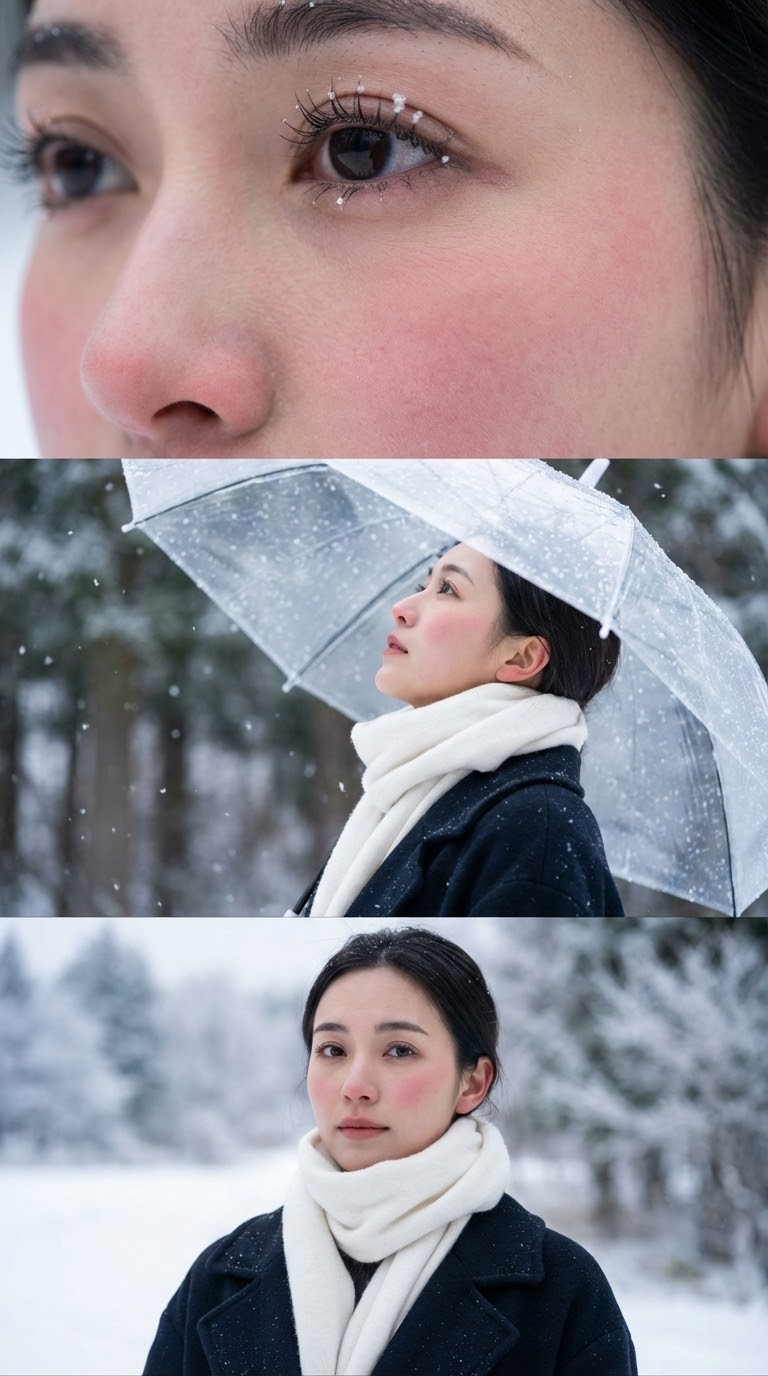
The "Korean Aesthetic Three-Panel Style" (Viral Hit)
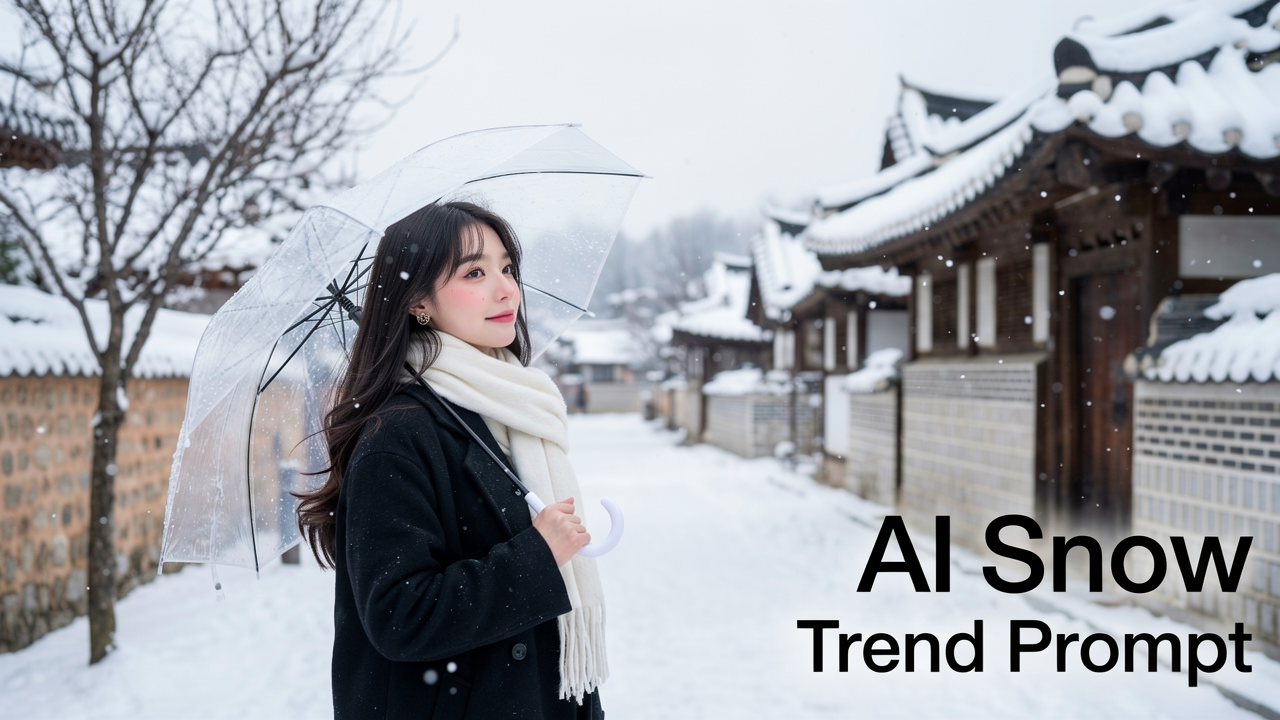
This is the most popular style taking over social media right now. It features a cinematic, vertical 9:16 composite split into three stacked frames, creating a romantic Korean drama vibe.
Prompt: "Create a vertical 9:16 cinematic composite of a woman in winter snow, split into three stacked frames. Top frame: extreme close-up of her eye and cheek, snowflakes on lashes and rosy skin. Middle frame: 3/4 profile gazing upward, holding a clear umbrella as snow falls. Bottom frame: chest-up portrait facing camera with quiet melancholy. Lighting: soft daylight, HDR tone, shallow depth (Canon EOS R5, 85mm f/1.2). Outfit: black wool coat, thick white scarf, hair tucked in. Mood: emotional, calm, Korean winter romance style."
2. The "High-End Couture Fashion"
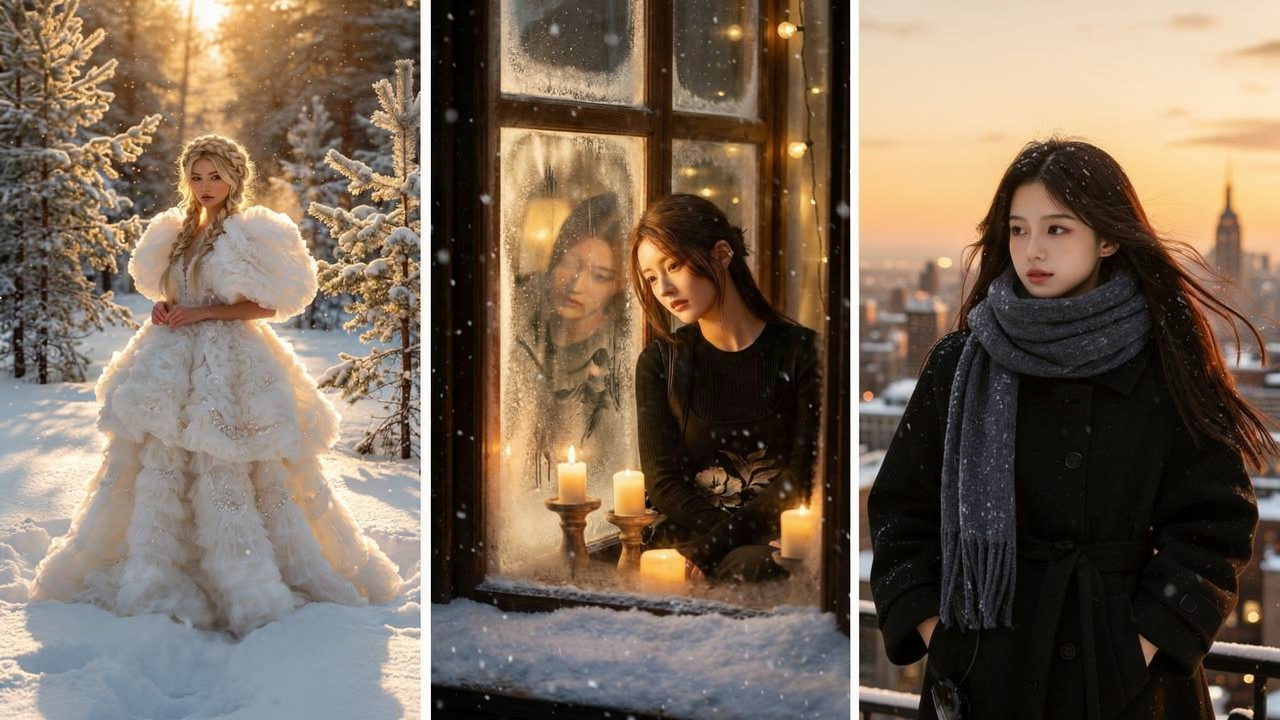
Elevate your winter photos to magazine cover quality with this sophisticated prompt.
Prompt: "Fashion photoshoot of a woman with braided hair, wearing a white haute couture puffy dress, on a snowy day in Siberia, high-end editorial style, magazine cover look, strong backlight, cinematic frost in background, 8k resolution."
3. The "Cozy Indoor/Outdoor Contrast"
Perfect for capturing the warmth of being inside while a blizzard rages outside.
Prompt: "Cozy indoor portrait with warm candlelight, subject sitting near frosty window, heavy snow outside, soft warm lighting, reflective glass, cinematic framing, peaceful winter evening mood, nostalgic atmosphere."
4. The "Cinematic Golden Hour Portrait"
This style combines realistic details with warm, dreamy lighting for a movie-star look.
Prompt: "Golden hour snow portrait, soft-focus lens, warm sun behind subject, gentle falling snowflakes, cinematic lighting, fine face details, cozy winter vibe, 4K clarity, dreamy shallow depth-of-field, 85mm lens, high resolution skin texture, realistic grain, floating snow particles."
Step-by-Step: How to Apply the Effect
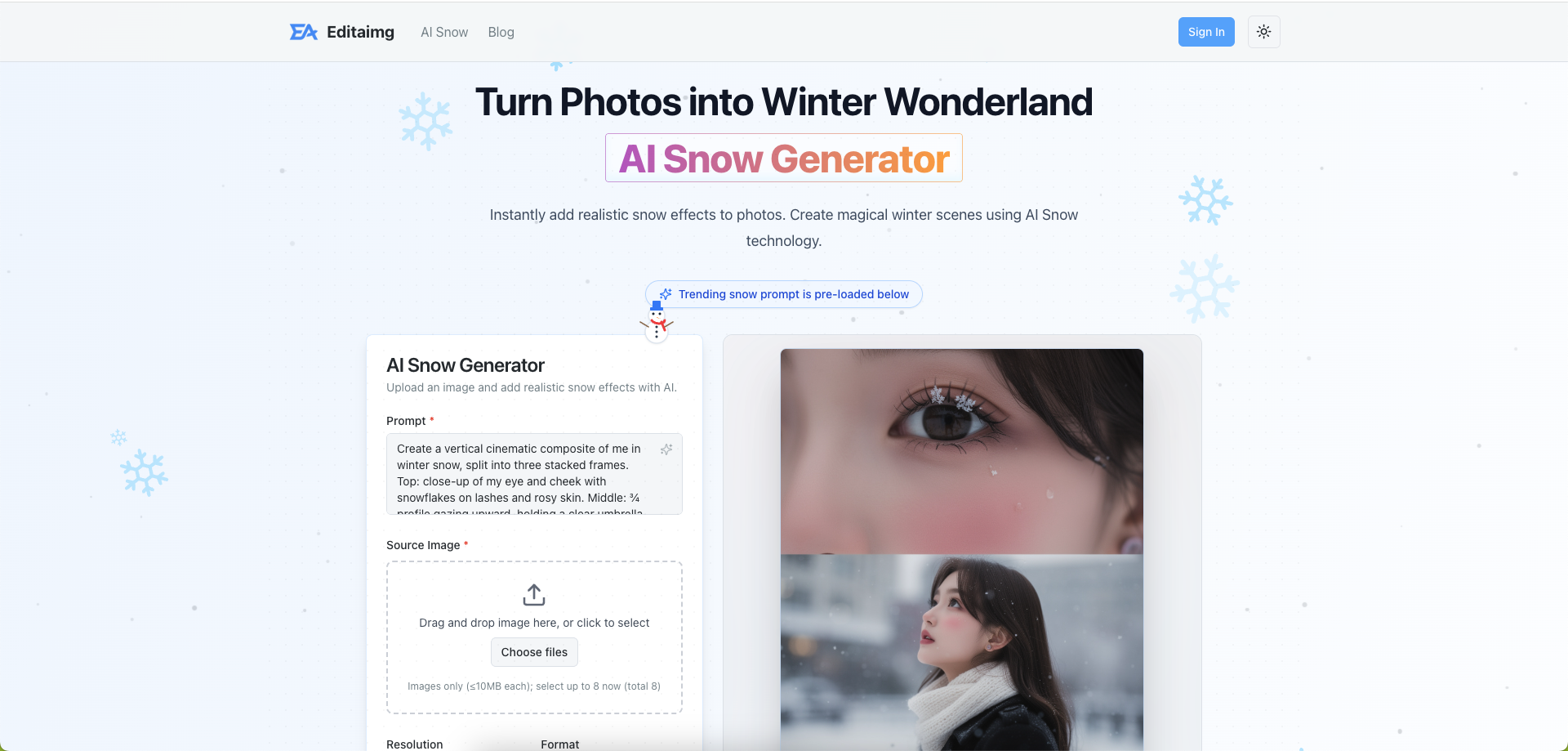
Ready to try it yourself? I’ll show you how to use our EditAImg AI Tool to achieve this look. It’s designed to understand natural language prompts, making it perfect for this trend.
Step 1: Choose the Right Photo
Not every photo works well with the AI snow trend. For the best results, look for:
Outdoor settings: Trees, streets, and buildings look natural with snow.
Winter clothing: If you’re wearing a summer tank top, the snow might look out of place. A scarf or jacket helps sell the illusion.
Good lighting: Avoid harsh flash. Soft, natural light blends best with AI-generated snow.
Step 2: Input Your Prompt
Upload your photo to the AI Snow Generator. In the prompt box, paste one of the examples above.
Tip: If you want to keep your face exactly as it is, lower the "denoising strength" or "effect intensity" if the tool allows. This ensures the AI changes the environment more than your features.
Step 3: Refine and Generate
Hit generate. If the snow is too heavy, add "light snow" to your prompt. If it’s too light, try "heavy blizzard."
Common Mistakes to Avoid
Even with a great AI snow trend prompt, things can go wrong. Here are a few pitfalls I’ve encountered:
The "Dandruff" Effect: If the snow particles are too small and only on the hair, it can look unappealing. Use terms like "large snowflakes" or "bokeh snow" to fix this.
Lost Facial Details: Sometimes the AI gets too excited and covers your face in snow. Add negative prompts like "no snow on face" or "clean face" to keep your features visible.
Mismatched Lighting: Adding a night-time snow storm to a bright sunny beach photo will never look right. Match the mood of your prompt to the original lighting of your photo.
Conclusion
The AI snow trend is one of the most accessible and fun ways to experiment with AI image generation. It adds a layer of magic to your photos without requiring any technical skills.
Remember, the secret sauce is in the prompt. Don't be afraid to experiment with different adjectives like "fluffy," "heavy," or "glowing" to see what happens.
Ready to make your photos go viral?
Try the AI Snow Generator for Free and tag us in your creations!