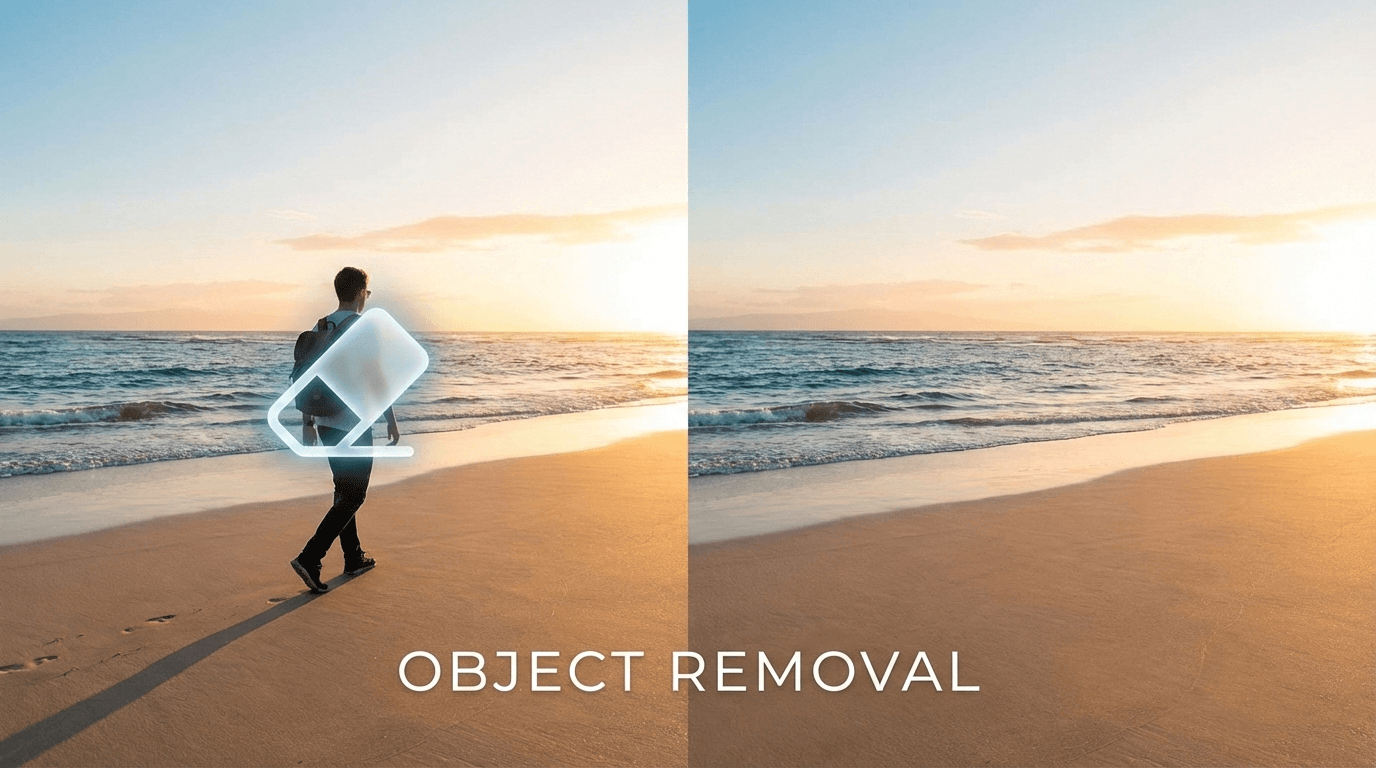
Remove Object from Photo: Fast, Clean AI Removal Online
If you’ve ever tried to remove object from photo with a clone stamp or patch tool, you know the pain: repeating patterns, blurry textures, and edges that scream “edited.” The good news is that modern AI makes it much easier to remove unwanted objects while keeping the result realistic—especially for common tasks like removing people in the background, deleting power lines, clearing desk clutter, or cleaning up product photos.
This guide shows a practical workflow to remove object from photo online with predictable results. You’ll learn how to choose the right image, how to describe “what to remove” without accidentally changing what you want to keep, and how to iterate like a pro when the first pass is close but not perfect.
When it makes sense to remove object from photo (common scenarios)
You don’t need heavy retouching for every image. These are the highest-impact use cases where remove object from photo usually saves the most time:
Travel photos: remove tourists, signs, trash bins, or cables while keeping architecture intact.
Product photos: remove dust, scratches, unwanted props, and messy backgrounds that distract from the product.
Real estate: remove cars, personal items, and small clutter to make rooms feel cleaner.
Portraits: remove a photobomber, stray hair, acne, or a logo you don’t want visible.
Social content: remove watermarks you own, remove distracting UI elements from screenshots, or clean up background noise. If you’re removing a watermark from a Gemini-generated image, we also have a dedicated tool: Gemini Watermark Remover.
If the object overlaps fine details (hair strands, transparent glass, intricate fences), you can still remove object from photo, but you’ll want smaller selections and more controlled iterations.
How to remove object from photo online (step-by-step)
The most reliable approach is simple: remove in small passes, protect what must stay the same, and verify edges at 100% zoom.
Step 1: Start with the highest-quality version of the photo
To remove object from photo cleanly, input quality matters:
Prefer higher resolution (more texture data for the AI to reconstruct).
Avoid heavily compressed images with blocky artifacts.
If possible, use the original lighting (overexposed/underexposed areas are harder to rebuild).
Step 2: Select only the object (and a tiny margin)
Most failures happen when the selection is too large. For a realistic remove object from photo result:
Select the unwanted object plus a small halo around it (to include edge pixels).
Don’t include large areas of “good” background unless necessary.
For long objects (wires, poles), remove in segments instead of one huge selection.
Step 3: Add “do not change” constraints (this matters more than you think)
AI sometimes “improves” things you didn’t ask for. When you remove object from photo, explicitly lock the parts you care about:
keep the subject unchanged
keep face identity and skin texture
keep text/logos unchanged (if you want them)
keep original perspective and framing
Step 4: Describe what should appear behind the removed object
To remove object from photo realistically, describe the background that should replace it:
For sky/walls: mention gradient, softness, noise level.
For grass/sand/water: mention texture continuity and direction.
For brick/tiles/patterns: mention repeating pattern alignment.

remove people from the background

Step 5: Generate, inspect, and iterate with one change at a time
After the first result, zoom in:
Check edges where the removed object touched the background.
Look for repeated artifacts (copy-like patterns) or “smudged” textures.
If it’s close: redo with a smaller selection or a slightly more specific prompt.
Ready to try it now?
Remove an object from a photo with Editaimg — upload an image, brush the object, and export a clean result.
Prompt template (copy & paste) to remove object from photo
Use this whenever you want to remove object from photo and keep everything else intact:
Remove object from photo. Remove [OBJECT] completely. Reconstruct the background naturally based on the surrounding area. Keep the rest of the image unchanged (subject, identity, clothing, textures). Keep the same lighting, perspective, and sharpness. No artifacts, no smudges.
Example 1: Remove a person from the background (street photo)
Remove object from photo. Remove the person standing behind the main subject. Reconstruct the street, sidewalk, and storefront naturally with consistent perspective and reflections. Keep the main subject unchanged.
Example 2: Remove cables/power lines from the sky
Remove object from photo. Remove all visible cables and power lines. Rebuild the sky with a smooth natural gradient and matching film grain. Keep buildings and edges crisp.
Example 3: Remove clutter from a desk (workspace photo)
Remove object from photo. Remove the scattered papers and the plastic bottle. Reconstruct the wooden desk surface with consistent wood grain direction and realistic shadows from surrounding objects.
Pro tips for a cleaner remove object from photo result
1) Remove in layers: big object first, edge cleanup second
For complex scenes, don’t try to perfect everything in one pass. First remove object from photo with a broad cleanup, then do a second pass for small artifacts near edges.
2) Match grain and sharpness (the #1 “it looks edited” giveaway)
If the replaced area looks too smooth, add one line:
Match the original noise/grain and sharpness.
If it looks too sharp, specify:
Keep background slightly softer to match depth-of-field.
3) For repeating patterns, tell the AI what pattern to continue
Patterns like tiles, bricks, fences, and wallpaper expose mistakes quickly. When you remove object from photo on patterns, mention:
“continue the tile grid alignment”
“keep grout lines straight”
“maintain brick spacing and perspective”
4) Protect faces, hands, and text with explicit constraints
If the removed object is near something sensitive (a face, a hand, a label), strengthen constraints:
“do not change facial features”
“do not change finger shape”
“do not alter any readable text”
Common mistakes when you remove object from photo
Selection too large: including too much background confuses reconstruction.
Vague prompts: “remove this” without stating what background should look like.
Trying to remove multiple unrelated objects at once: split into smaller removals.
Ignoring perspective: reconstructed lines (tiles, edges) must follow camera angle.
When you’re close, resist rewriting everything. One small, precise constraint often makes your remove object from photo output snap into place.
FAQ: remove object from photo
Can I remove object from photo without changing the rest of the image?
Yes, if you say it explicitly. The key is repeating “keep the rest unchanged” and locking identity/texture/perspective. For best results, remove in smaller selections.
Why does the removed area look blurry or smudged?
It usually means the AI wasn’t sure what texture to rebuild. Use a higher-quality input, shrink the selection, and specify the surface: “wood grain,” “smooth painted wall,” “blue sky gradient,” “concrete texture,” etc.
How do I remove object from photo when it overlaps hair or glass?
Do it in small passes and avoid removing too much at once. Keep strict constraints (don’t change hair strands / don’t change glass reflections), and expect 1–3 iterations for a clean edge.
Conclusion: remove object from photo with realistic results
To remove object from photo effectively, treat it like a controlled reconstruction task: start with a good image, select tightly, lock what must remain unchanged, and describe the background you want the AI to rebuild. With a solid workflow, you can remove unwanted people, clutter, and distracting objects in minutes—without the “obvious edit” look.
Remove Object from Photo Now — upload your image, erase the distraction, and export a clean, natural-looking photo.