Retouch Jewelry with AI: Remove Reflections (2026)
Jewelry photography is notoriously difficult. You need the perfect lighting, an expensive macro lens, and hours of post-processing to get that "luxury look" without ugly black reflections. For most Etsy sellers and small business owners, this means either spending hundreds of dollars on professional equipment or paying $5-$20 per photo for retouching services.
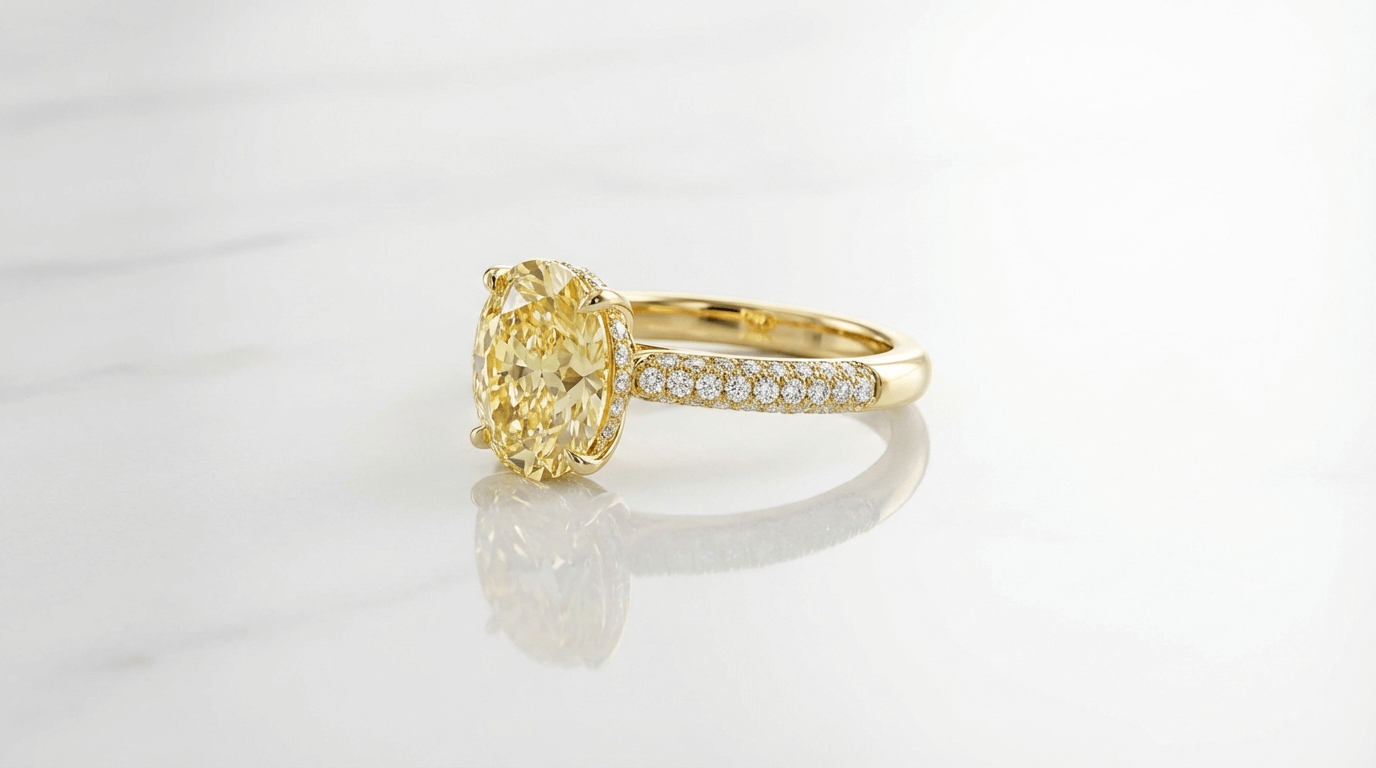
But what if you could turn a simple iPhone photo into a luxury brand masterpiece in seconds, for free? Thanks to new AI technology, you no longer need Photoshop or a professional retoucher. In this guide, I'll show you exactly how to use AI Jewelry Photo Editor to remove reflections, add a polished shine, and get a perfect white background instantly.
The Problem: Why Your DIY Jewelry Photos Look "Cheap"
If you've ever tried photographing a ring or a necklace with your phone, you know the struggle:
- Black Reflections: The shiny metal acts like a mirror, reflecting your phone, your hands, and your messy room.
- Dull Metal: Without studio lighting, gold looks brown and silver looks grey.
- Bad Background: Even with a lightbox, getting a pure white background (#FFFFFF) is hard.
Professional retouchers use "Path" and "Gradient Map" in Photoshop to fix this, which takes 20-30 minutes per image. But with Editaimg's AI, you can fix all three problems with one simple prompt.
Real-World Example: From "Trash" to "Treasure"
Let's look at a real example. Here is a raw photo of a gold ring taken with an iPhone, compared to the AI-retouched version.
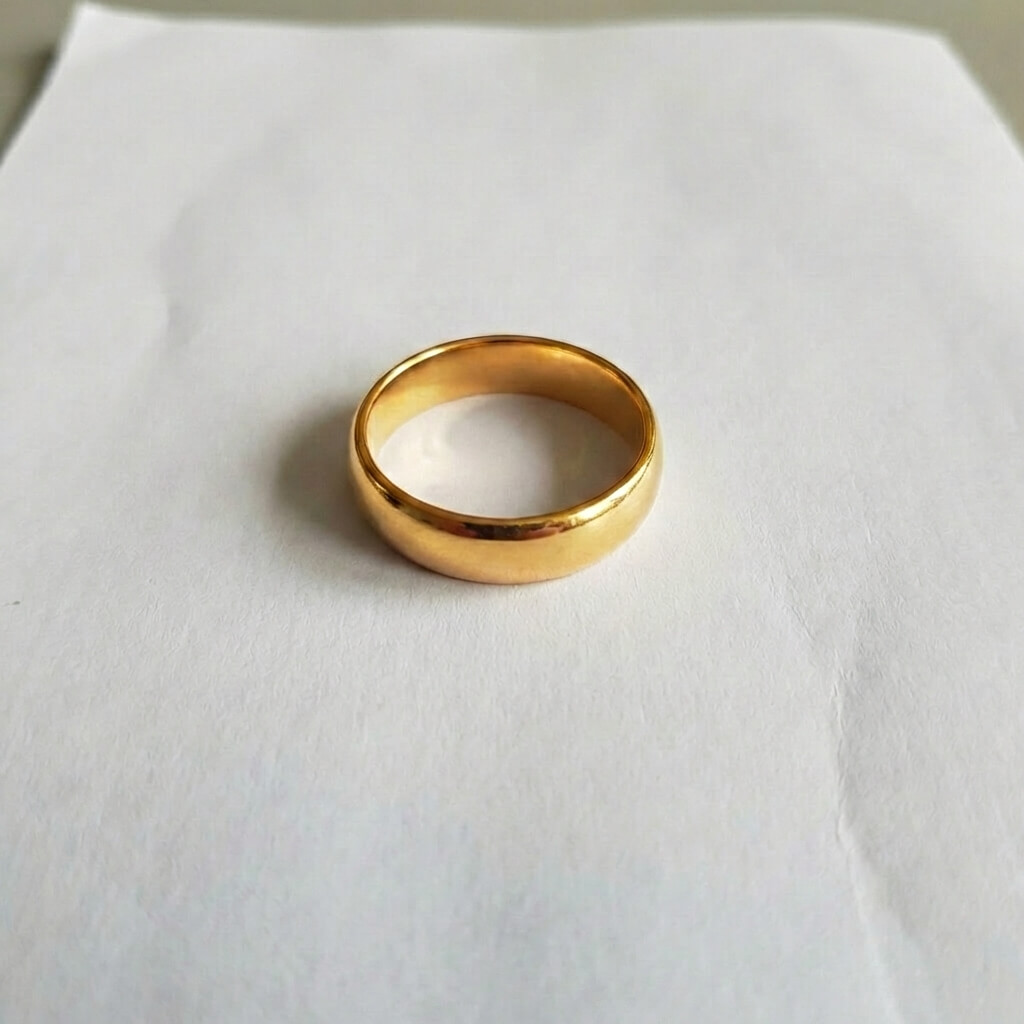
Original (Dull, Poor Lighting)
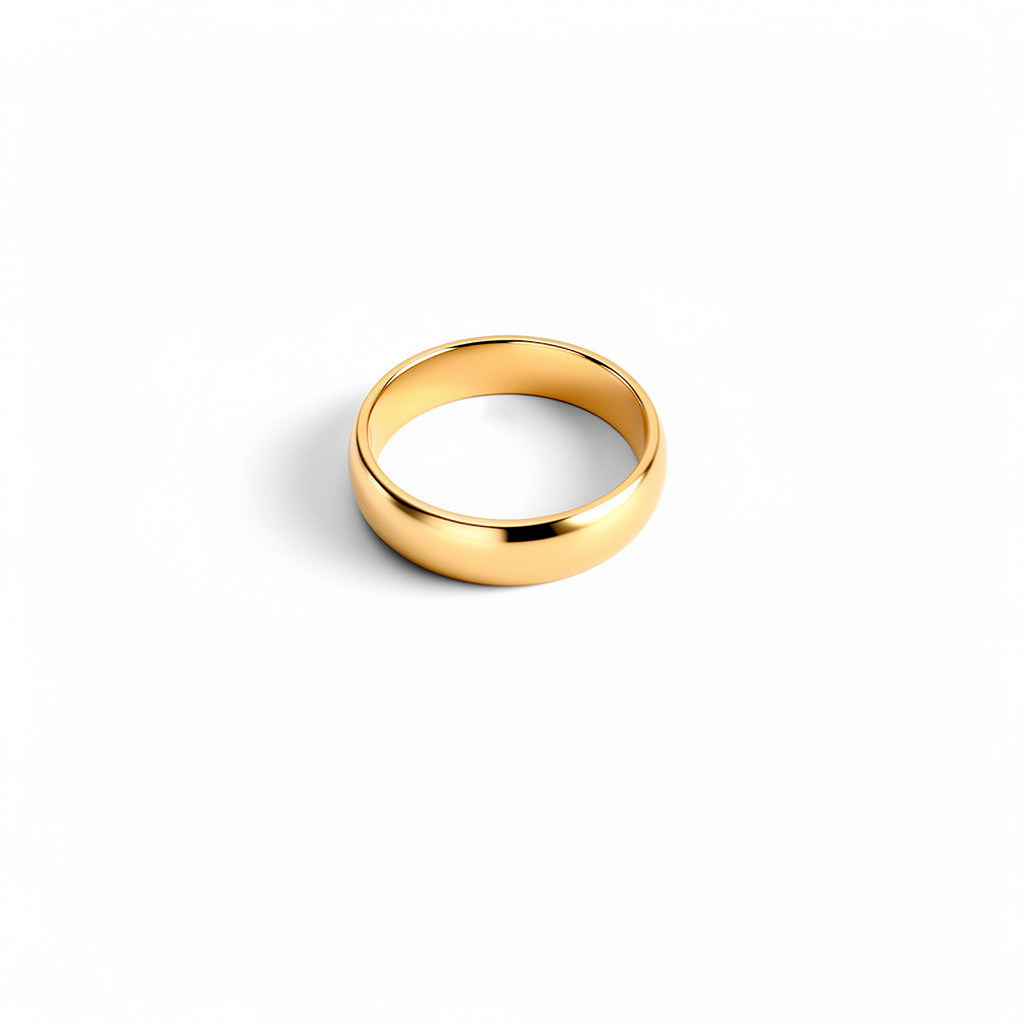
AI Retouched (Luxury Studio Style)
Step-by-Step: How to Retouch Jewelry with AI
You don't need to be a prompt engineer to get these results. We've tested hundreds of prompts and found the "Golden Formula" that works for 90% of jewelry.
Step 1: Upload Your Photo
Go to the AI Image Editor and upload your raw photo.
Step 2: Enter the "Golden Prompt"
In the text box, copy and paste one of these prompts depending on your style:
Retouch this gold ring to have a high-end studio look. Remove all reflections and black spots. Make the metal smooth, shiny, and polished. Place it on a clean white background with soft natural shadows.
Professional jewelry photography of a silver ring. High polish finish, bright and clean metal texture. No unwanted reflections or noise. Studio lighting, pure white background.
Step 3: Generate & Download
Click Generate. In about 10 seconds, the AI will reconstruct the metal texture, remove the ugly reflections, and place your product on a clean white background. You can now use this image directly for your Etsy listing or Instagram post.
Why This Works Better Than Filters
Most "photo editor apps" just increase brightness or contrast. This doesn't fix the core problem: bad reflections. If you brighten a photo with black reflections, you just get a bright photo with grey reflections.
Editaimg's AI (powered by Flux technology) actually understands the material. When you say "smooth metal," it redraws the surface of your ring to mathematically simulate how light should bounce off perfectly polished gold. It's not just editing; it's restoration.
FAQ for Jewelry Sellers
Does this work for gemstones?
Yes! The AI is excellent at enhancing the sparkle of diamonds and colored gems. If you want to emphasize a pearl, try adding "Make the pearl like Mikimoto south sea golden pearl" to your prompt.
Can I remove the background only?
Yes, but our method is better. Instead of just cutting out the object (which leaves jagged edges), the "White background" prompt generates a natural floor shadow, making the product look grounded and realistic.
Is it free to try?
Yes, you can try Editaimg's AI Image Editor for free. Stop wasting money on expensive retouchers and start editing like a pro today.